

Disclosure: This article contains affiliate links. If you sign up for a paid plan through some of the links below, we may earn a commission at no extra cost to you. This never changes which tool we recommend or what we write about it.
Most AI presentation tools go one direction: they turn text into slides, or slides into a video. This is the reverse problem. You already have a video, a recorded webinar, a lecture, a screen capture of a talk, and you want slides out of it. That is a genuinely different task, and getting it right depends on understanding that “video to slides” actually means two separate jobs that need two different kinds of tool.
This guide explains what video-to-slides AI really does, the two jobs it splits into, and the workflow that turns a recording into an editable deck without hours of manual screenshotting. We draw on vendor documentation and current tool behavior so the steps reflect how this works in 2026.
Key points
- “Video to slides” is two jobs: extracting existing slides from a screen recording, or building a new deck from a talk’s content.
- Frame-extraction tools detect slide changes in a recording and export the slides as editable files.
- For a talk with no slides, transcribe the video, then generate a fresh deck from the transcript.
- Whichever route you take, the AI gives you a draft to clean up, not a finished presentation.
What “video to slides” actually means
If your source is audio rather than video, our guide on podcast to slides AI covers turning an episode into a deck.
If your source is specifically a recorded lecture you want to study from, our guide on lecture to slides AI covers the review-and-recall angle.
The phrase hides two very different needs, and picking the wrong tool wastes time. The first need is extraction: your video already shows slides, a screen recording of a webinar, say, and you want those exact slides back as editable files rather than as pixels in a video. The second need is generation: your video is a person talking, a lecture or a demo with no slides on screen, and you want a brand-new deck built from what they said.
These require opposite approaches. Extraction is a computer-vision problem: the tool watches the video, detects when the slide on screen changes, captures each one, and exports them. Generation is a language problem: the tool transcribes the speech, analyzes the structure and key points, and writes a deck from scratch. Knowing which job you have is the single most important decision here, because a frame-grabber cannot invent slides from a talking head, and a transcript-to-deck generator cannot recover the exact slides that were already on screen.

| Factor | Extraction route | Generation route |
|---|---|---|
| Your video is | A recording that shows slides | A person talking, no slides |
| How it works | Detects slide changes, captures frames | Transcribes speech, writes a new deck |
| Output | The original slides, often as images | A fresh, editable deck |
| Best for | Reusing or studying a known deck | Turning a talk into slides |
| Main risk | Non-editable, missed transitions | Misread or invented content |
Job one: extract slides from a screen recording
If your video already contains slides, the goal is to pull them out cleanly. AI frame-extraction tools do this by detecting slide transitions rather than grabbing frames on a timer, which means they capture one clean image per slide instead of dozens of near-duplicates. The better tools focus on content-level changes and learn to ignore a speaker’s webcam overlay, mouse movement, or video compression noise, so you get the slide and not the clutter around it.
Tools built for this, such as Video2PPT, CopySlides, and similar converters, take a file or a link, detect the distinct slides, and export them to PowerPoint, Google Slides, or PDF as editable elements where possible. Some also record live meetings from Zoom, Google Meet, or Teams and extract the slides automatically as the call happens. This route is ideal when you attended a webinar, own a recording, and simply want the deck back to reuse or study. It is dramatically faster than the old manual method of pausing the video every few seconds and taking a screenshot, and it avoids the ragged, inconsistent crops that hand-captured frames produce. A tool that detects transitions gives you one clean image per slide, in order, ready to drop into a document.
The honest limit is fidelity. Extracted slides are often images or rough approximations rather than the original editable objects, so text may not be selectable and layouts may need rebuilding if you want to change them. For studying or reference that is fine; for heavy editing, treat the extraction as a starting point. A practical middle ground is to extract the slides as images, drop them into a fresh deck, and rebuild only the two or three slides you actually need to change, rather than trying to make every extracted frame fully editable. That keeps the effort proportional to what you really intend to do with the deck.
Job two: turn a talk into a brand-new deck
If your video is someone speaking with no slides to capture, extraction has nothing to grab. Here the workflow is different: you transcribe the audio, then feed that transcript to a deck generator that writes slides from the content. Several AI tools now accept a video or even a YouTube link directly, pull the transcript, identify the important topics and supporting points, and produce a structured presentation in a few minutes.
This is the route for turning a recorded lecture, a conference talk, or a long demo into a shareable deck. The AI is not recovering slides that existed; it is summarizing spoken content into a new structure. That makes the quality of the transcript and the clarity of the talk the biggest factors in how good the deck is. A rambling video produces a rambling outline, while a well-structured talk converts cleanly. This is why a recorded conference talk, which was scripted and rehearsed, usually yields a far better deck than a casual off-the-cuff video, where the speaker circled back and thought out loud. If your source is loose, expect to do more editing on the generated deck, and consider tightening the transcript before you hand it to the generator at all. Our guide to turning meeting notes into a PowerPoint covers a closely related workflow for spoken content.
A reliable workflow with Descript and Gamma
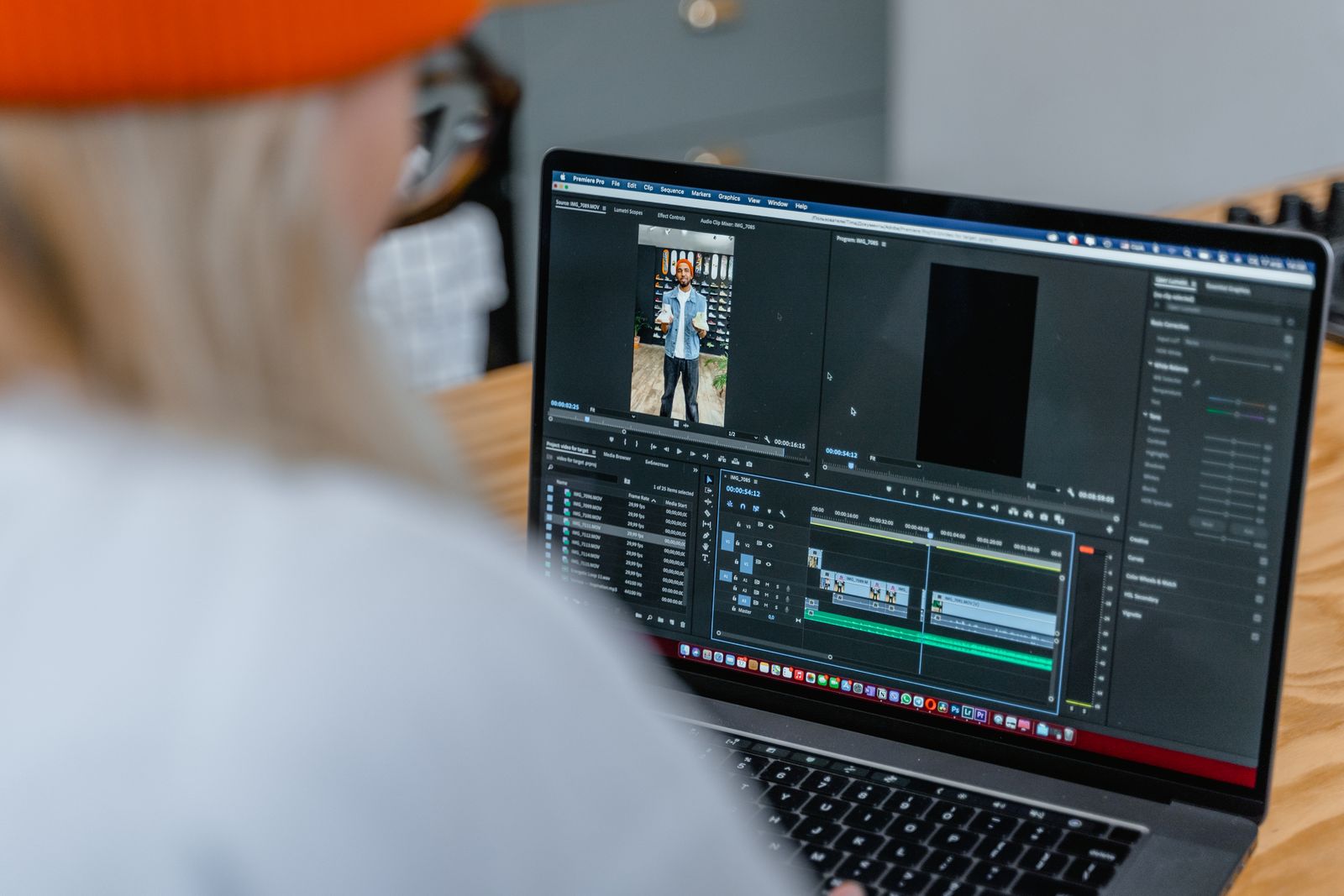
For the generation route, a clean two-step workflow beats hunting for a single tool that claims to do everything. First, get an accurate transcript. A tool like Descript records or imports your video and transcribes it with strong accuracy, and because it edits video by editing the transcript, you can trim filler and tangents before you ever build a slide. Cleaning the transcript first is the single biggest lever on deck quality, because the generator only works with the words you give it.
Second, turn that cleaned transcript into a deck. Paste it into a generator like Gamma, which reads the text, structures it into sections, and builds a designed deck in about a minute. You then edit the result, cutting weak slides and tightening wording. This pairing keeps each tool doing what it is best at: Descript for accurate transcription and cleanup, Gamma for fast, good-looking slide generation.
What to watch for
The biggest trap is trusting the output without checking it. On the extraction route, verify that the tool captured every slide and did not miss transitions or duplicate near-identical frames. On the generation route, the risk is worse: an AI summarizing a talk can misattribute a point, drop an important caveat, or invent a plausible-sounding detail that the speaker never said. Read every generated slide against what the video actually contained before you present it, and pay closest attention to any numbers, names, or dates the AI put on a slide.
The second thing to watch is editability. Many extraction tools hand you images, not editable slides, so confirm the output format matches what you need. If you must restyle or update the content, a transcript-to-deck route usually gives you more editable material to work with than a frame grab does. Match the route to whether you need the slides to study or the slides to change. It is worth deciding this before you start, because the two routes lead to genuinely different files, and converting an image-only extraction into an editable deck afterward is often more work than picking the generation route in the first place.
Tips for a clean conversion
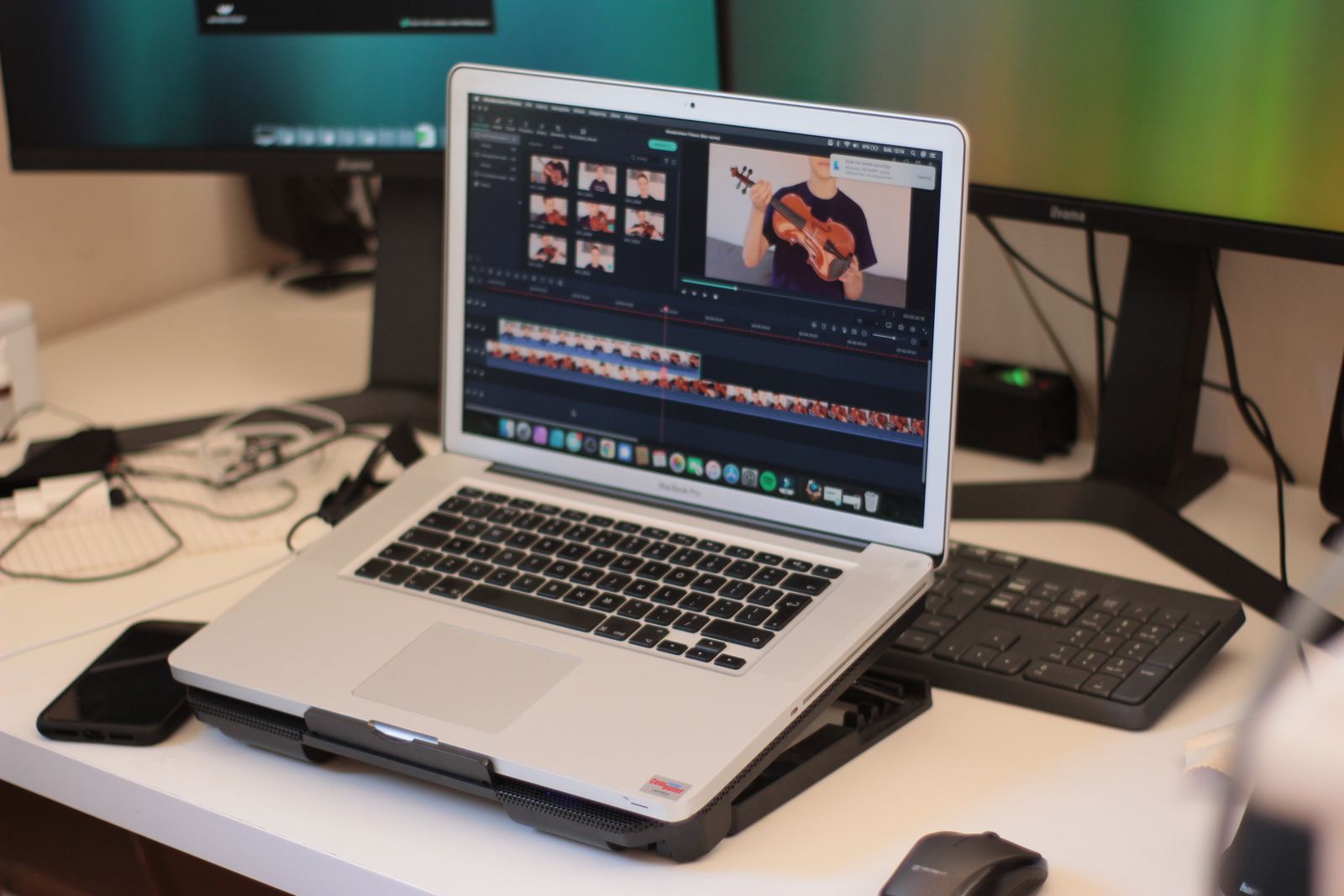
A few habits make the difference between a usable deck and a mess. On the generation route, start by cleaning the transcript before you build anything. Cut the greetings, tangents, and repeated points so the generator works from the signal, not the noise. Because tools like Descript let you edit the video by editing its transcript, this cleanup doubles as trimming the source, and it is the highest-value step in the whole process.
Second, give the generator a hint about length and audience. Rather than dumping a ninety-minute transcript and hoping for the best, tell the tool who the deck is for and roughly how many slides you want. A long talk rarely needs a slide for every point it wandered through; a tighter target forces the AI to promote only the ideas that matter, which is usually what you wanted anyway.
Third, on the extraction route, check the transitions. Frame-detection tools occasionally miss a fast slide change or capture a build animation as several separate slides. A quick pass to delete duplicates and confirm nothing is missing takes a minute and saves you from presenting a deck with gaps. Treat the automated output as a strong first pass that still needs a human eye before it is done.
Who needs video-to-slides AI
Students and researchers get the most obvious value: capturing the slides from a recorded lecture, or turning a conference talk into a study deck, saves hours of pausing and screenshotting. Professionals use it to reclaim decks from webinars they attended, to convert a recorded training session into reusable material, or to turn a founder’s recorded pitch into a shareable slide version. Anyone who consumes a lot of video content and needs the key points in slide form benefits. Content teams find it useful too: a single recorded talk can be repurposed into a slide deck, a summary document, and social snippets, and pulling the deck out of the video is the first step in that chain. The common thread is that the information you want is trapped in a format that is hard to skim or reuse, and slides make it portable again.
It is less useful when you already have the original deck, in which case just use that file, or when the video is purely conversational with no structured content worth extracting. The tool earns its place when a video holds information you need in a different, more usable format, and manually rebuilding it would cost real time. If your source is a mix of file types, our hub on how to convert any file to a presentation with AI covers the wider set of inputs, and for the opposite direction, turning a deck into a video, see our guide to the AI presentation video generator.
Frequently asked questions
Can AI convert a video into slides?
Yes, in two ways. If the video already shows slides, AI frame-extraction tools detect the slide changes and export each one as an editable file. If the video is just someone talking, AI transcribes the speech and generates a new deck from the content. The right method depends on whether the slides already exist in the video.
How do I turn a YouTube video into a presentation?
Several AI tools accept a YouTube link directly, pull the transcript, analyze the key points, and build a deck in a few minutes. Alternatively, transcribe the video with a tool like Descript, clean up the text, and paste it into a generator like Gamma. Always review the result, since AI can misread or over-compress spoken content.
Are the extracted slides editable?
Sometimes, but often not fully. Many extraction tools export slides as images rather than as editable text and shapes, so you may not be able to select or restyle the content. If you need to edit heavily, check the tool’s output format first, or use a transcript-to-deck route that generates fresh, editable slides.
What is the best tool for video to slides?
It depends on the job. For extracting slides already on screen, a dedicated frame-detection converter is best. For building a new deck from a talk, pair a transcription tool like Descript with a deck generator like Gamma. There is no single winner, because the two jobs need different technology.
Can I convert a recorded webinar or lecture into a PowerPoint?
Yes. If the webinar shows slides, a frame-extraction tool can pull them back into an editable file. If it is mostly the presenter talking, transcribe the recording and generate a fresh deck from the transcript. Recorded lectures and webinars are among the most common and useful cases for video-to-slides AI, because the content is already structured.
Does the video need to be high quality?
For extraction, resolution matters: a low-quality recording makes the captured slides blurry and harder to reuse, so the sharper the source, the better the result. For the generation route, video quality matters less than audio clarity, because the tool works from the transcript. A clear voice and a well-organized talk produce a better deck than crisp visuals with rambling narration.
The bottom line
Video-to-slides AI is genuinely useful once you know which of its two jobs you actually have. If your video already contains slides, a frame-extraction tool pulls them out, with the caveat that the output may be images rather than fully editable objects. If your video is a talk with no slides, transcribe it first with a tool like Descript, then generate a fresh deck from the cleaned transcript in Gamma. Match the route to your source, verify every slide against the original video, and you turn hours of manual work into a few minutes of editing. The technology has quietly made a task that used to mean pausing, screenshotting, and retyping into something you can finish over a coffee, as long as you remember that the AI hands you a draft to check, never a finished deck to trust blindly.
Richard Johnson writes about AI tools and productivity software for CognitiveFuture. He focuses on practical workflows that help people get real work done with AI, grounded in vendor documentation and how the tools actually behave.
Sources
- BibiGPT, “Video to Slides: Extract PPT from Any Video with AI (2026 Guide)”
- SlidesPilot, “Convert Video to PPT with AI”
- Descript, product documentation

Richard Johnson
Richard Johnson is an AI specialist at one of the world's largest technology companies, where he has spent the past three years helping organizations adopt AI. CognitiveFuture extends that work publicly: gathering the available evidence on each tool, from vendor documentation to independent reviews and user feedback, combined with hands-on testing where we have done it and said so, and cutting a crowded market down to the right choice for the job in front of you.